
Automating a recruiting routine can feel risky: if something goes wrong, it goes wrong for hundreds of candidates at once. Now your team builds its own workflows in Aindez, sees what each run did, and approves before anything is written to your systems.
Here's how it works, step by step.
New1 · Build the workflow yourself
On a full-screen page you choose when it runs and lay out the steps. The condition is set with selectors, with no code, and before saving you see how many records would fall into exceptions. You can start from the data you already have in Aindez, such as your candidates, or from a connected system. You can edit, deactivate and reactivate the workflow whenever you want.
New2 · Choose when it runs
A workflow runs manually or on a schedule: every 1, 4 or 12 hours, or once a day at the time you pick. It can also start when another system notifies it, using a dedicated address per workflow that you copy from the screen. If that system repeats the notice, a second run isn't created.
New3 · Watch each run, record by record
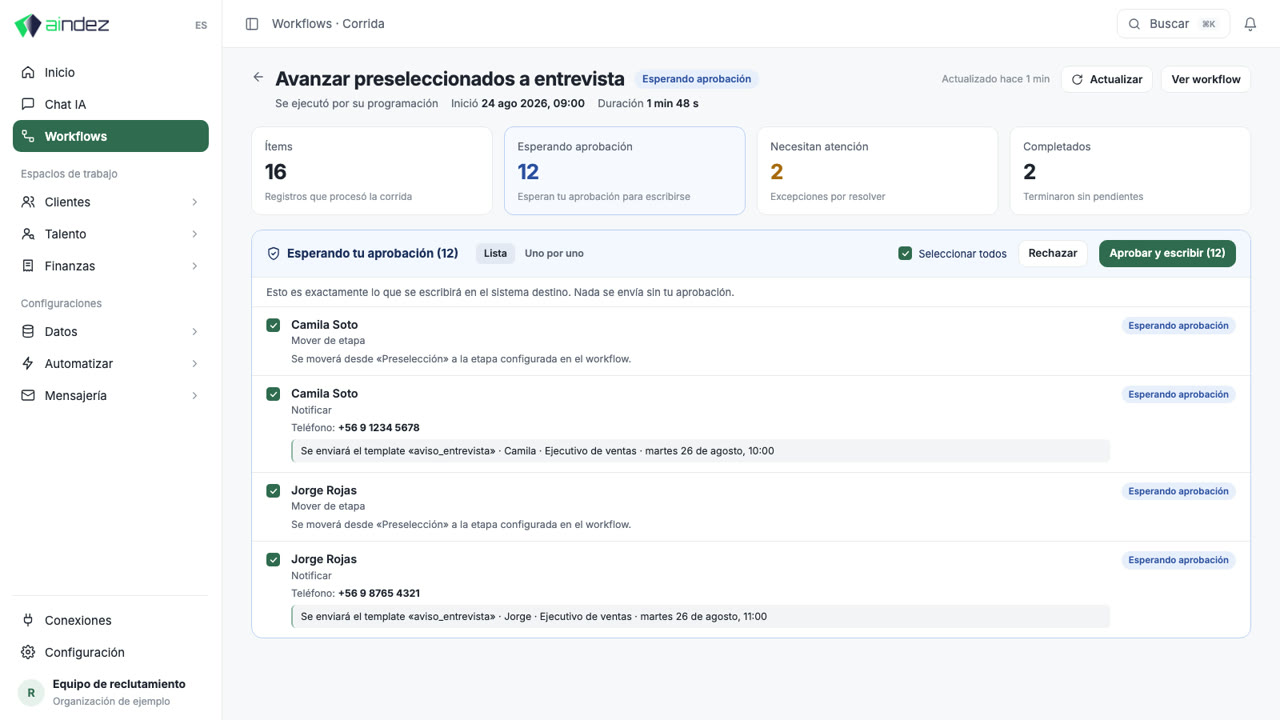
Every run is recorded. In the viewer you see which records passed, which fell into exceptions and why. Earlier runs keep the version of the workflow they ran with.
New4 · Move candidates between stages or message them on WhatsApp
The first step can read the candidates in a stage of your openings. Then the AI can move them to another stage or notify them on WhatsApp, with one recipient per candidate and without resending a message that already went out. Moving a stage checks that the candidate is still where it was expected to be, and the change is recorded in the board's history under the name of whoever built the workflow.
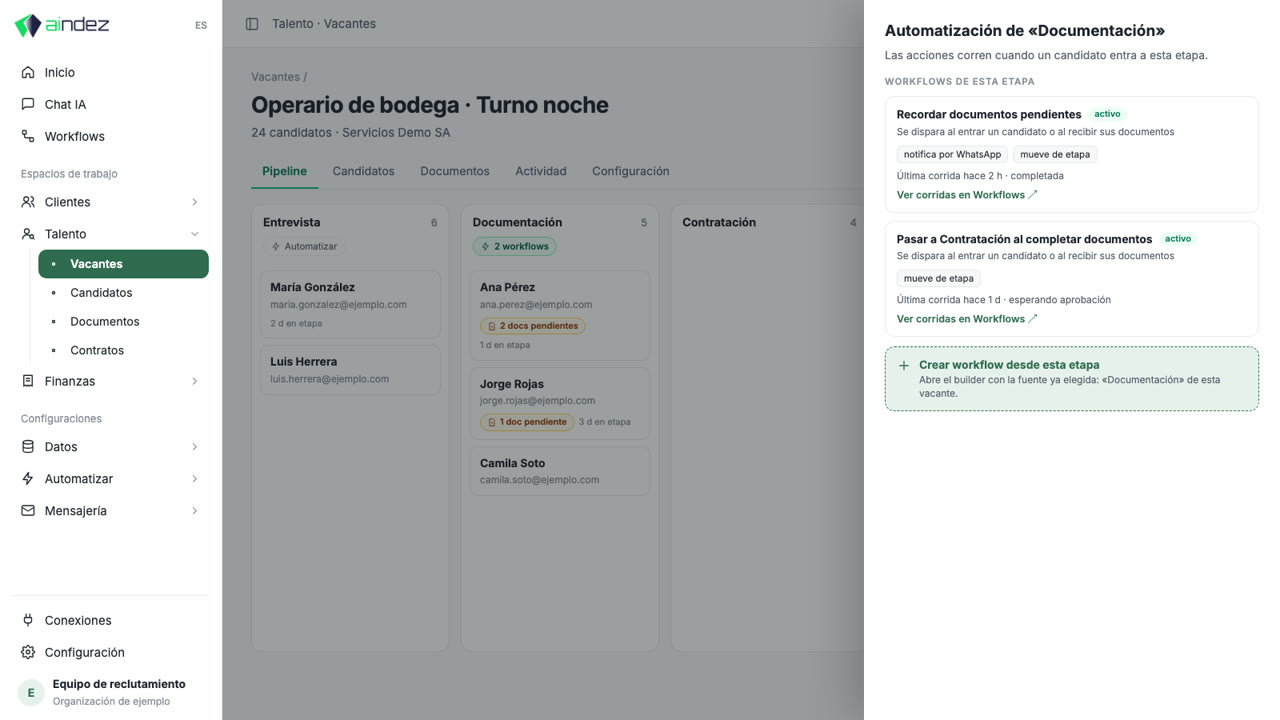
Each pipeline stage shows its workflows, and you can create one from there: it stays tied to that stage and runs when a candidate enters it.
5 · Approve before anything is written
When a workflow ends by writing to one of your systems, each record waits for your approval and you see the exact content that will be sent. Approve or reject in batch: nothing is written without your approval, and approving twice doesn't duplicate the action. Records with problems are handled in exceptions: retry, complete by hand, or dismiss with a reason.
How we do it
- No write without approval.
- Approving twice doesn't write twice.
- The first run always goes through you.
- Every run leaves a record, record by record.
In technical terms
- Before writing to a connector such as Talana or SAP SuccessFactors, every record goes through approval; there's no shortcut.
- The intent to write is saved before calling the external system, so a crash midway doesn't cause a double write.
- Workflows run on an interval or once a day, and the same workflow never has two runs at once.
- A global switch pauses new runs and approved writes all at once.
- Each workflow has its own webhook with an HMAC token, and a redelivery doesn't create another run.
Your team automates more routines without losing control over what gets written.